
Identify the entry type before changing device settings
A normal browser tab, a home-screen web app and an installed native package are different entry types.
| Entry | Identify | Review separately |
|---|---|---|
| Browser tab | Address and browser | Website permissions |
| Home-screen web entry | Saved destination and start page | Browser / system web-app controls |
| Native package | Publisher and installation source | Operating-system app permissions |
Read the full explanation
Winbox offers browser account pages and a supported home-screen option; adding that icon does not require obtaining a separate APK from a message.
The browser’s own install prompt is different from a page demanding that you download a file to continue. Check which application and website are actually open before changing settings.
A logo or a full-screen window does not identify a package publisher, guarantee a persistent login or establish that every game edition is enabled on that device.
Review the feature, purpose and requesting site
Camera, microphone, location and notification requests refer to different features. Read which website or application is asking and what task needs it; allowing one feature need not mean allowing the others.
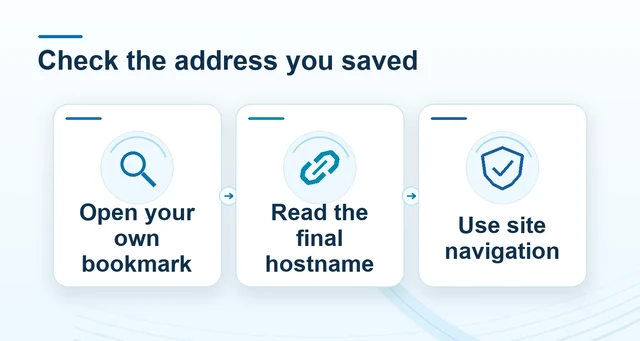 Check Winbox addresses, redirects and saved bookmarks
Read the full explanation
In Chrome, site settings let you inspect individual site permissions. A native application also has operating-system permission controls.
If a verification step requests a camera, check the actual service and purpose before deciding; do not grant unrelated access merely because a popup uses the Winbox logo.
An embedded service can have a different origin from the surrounding page, so record the requesting name when asking support.
Keep updates and protection in their normal controls
Update your browser or installed application through its normal vendor or system controls. A notification saying “update required” is not proof that a downloaded file comes from that vendor. On Android, keep Google Play Protect enabled and take its harmful-app warnings seriously; it checks applications, including those from outside Google Play. Do not disable device protection to satisfy a forwarded installer instruction.
If you only want the Winbox web entry, return to the browser route. A missing install button does not justify accepting a file, configuration profile or remote-control request from a stranger.
Understand the limits of a private browsing session
Chrome Incognito starts a separate browsing session and removes its temporary site data when all Incognito windows close. It does not make activity invisible to websites or a network operator.
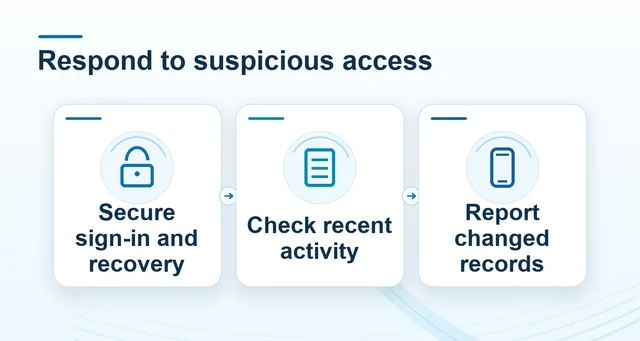 Protect your Winbox account after an unfamiliar login
Read the full explanation
Files downloaded and bookmarks saved can remain on the device. Use a trusted personal device for sensitive account access; a private window does not make an unfamiliar device trustworthy.
Before handing a device to someone else, sign out of the account, close the relevant windows and review saved credentials, downloads and notifications.
Closing a window is not a way to cancel a payment or erase a service’s account record.
Separate a display problem from account state
When moving between phone, desktop and a home-screen entry, identify the same account, selected product and edition rather than assuming every screen has identical features.
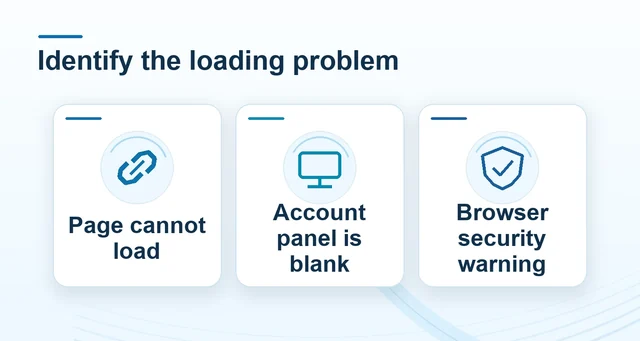 Winbox browser loading, redirects and connection warnings
Read the full explanation
Device age, browser support and connectivity can affect loading and controls; a smoother animation does not establish better odds or a different credited result.
If an action was already submitted before a rotation or connection break, inspect its history before repeating it. Report the device, browser, requesting site and exact permission or error text.
Use the browser-troubleshooting guide for loading failures and the account-access guide for a form that rejects your login.
Move between screens with the same record in view
Before moving from a phone to a desktop or from a browser tab to the home-screen entry, note the account identifier privately and retain any submitted action’s reference.
| Keep constant | Compare on the second screen |
|---|---|
| Account identity | The actual signed-in identifier |
| Product | The same provider, table or market |
| Action | The original reference, amount and currency |
| Status | Accepted, pending, completed or rejected in that record |
Read the full explanation
On the second screen, verify the signed-in account and selected provider before comparing history.
Compare the same transaction or round, including its time and status; a different default category or a new login screen does not prove that records disappeared.
Do not submit a replacement payment or selection merely because the first screen closed. If the accepted record is missing or unclear, stop and report the reference through the existing support case.
Questions, answered
Can camera and notification permissions have different choices for one site?
Yes. They control different features. Inspect the requesting site and each permission separately; approval for one is not an instruction to approve every other request.