
What to check
The useful checklist for Winbox is to open its known address directly, confirm where its login link leads and review saved bookmarks and passwords only for the matching hostname.
Replace shortcuts from the confirmed account route
Open your bookmark, shortcut and password-manager entry separately. They can point to different addresses even when they have the same displayed name.

| What you saved | How to check it |
|---|---|
| Browser bookmark | Reopen Winbox from a known address, reach the intended page and replace the bookmark |
| Home-screen icon | Compare the address it opens with the current Winbox site before recreating the icon |
| Password-manager entry | Check the hostname that the entry is set to fill on |
| Old campaign or login link | Navigate from the current Winbox page, then find the equivalent action |
Check an existing request before starting over
If an old link stopped loading during a withdrawal or verification request, save its date and reference. Use the current Winbox login page to open the existing account and look for that record.
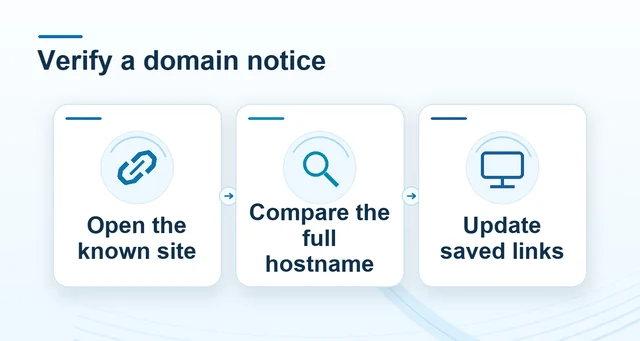 Check a website address change before signing in
Read the full explanation
A redirect failure can happen after a request was accepted. Use account history to decide what needs attention before submitting a second request.
A domain update on another Winbox website does not establish a change for Winbox. Use the Winbox homepage and support channel to verify any message that tells you to change your saved address.
How to use the record
If your last visit left an open payment or verification step, save its time and reference before changing shortcuts. Then check the account history through the Winbox entry. Avoid making another submission because an old link stopped working. Ask Winbox Contact to check the record if the new visit does not show it.