
What to check
Test the Winbox page, account sign-in frame and the guide that you need. A browser shortcut and a native package have different system requirements, so an old package’s compatibility statement cannot diagnose a current loading issue.
Check the browser, account panel and shortcut separately
Diagnose a failed page on the device where it happened first. Record the browser and operating system before trying another route.
| On your device | What to test | What to record |
|---|---|---|
| iPhone and Safari | Open a regular Winbox guide, then the sign-in page | iOS version and whether only the embedded panel fails |
| Android and your usual browser | Load the homepage, account form and optional home-screen action | Android version, browser version and any permission prompt |
| Desktop browser | Open the same account route in a clean tab | Browser version and whether an extension changes the result |
Take the next step that matches the symptom
If the homepage works on two devices but the account panel is blank on one, test account access in that device’s default browser. An in-app viewer can handle storage and redirects differently.
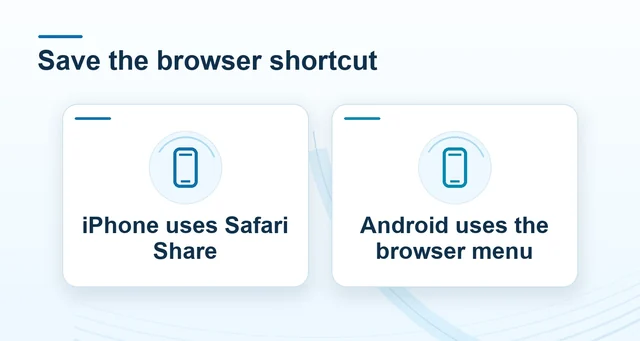 Android and iPhone access differences
Read the full explanation
Record the exact message before clearing history or changing a setting.
If a home-screen icon loads the wrong page, recreate it from your checked Winbox address. If the browser reports a security warning, save the warning and use the normal support route. For a compatibility case, include the version, address, time and the specific screen that failed.
How to use the record
If the page fails, record the operating system, browser, error, time and whether a fresh tab works. Test your usual network before changing permissions or clearing data. The mobile access and connection guides explain how to separate ordinary rendering trouble from a warning about the destination itself.