
What to check
The share menu may offer an option to add the site to the home screen. This shortcut points back to browser access, and the account still manages sign-in and verification independently.

Save Winbox from Safari
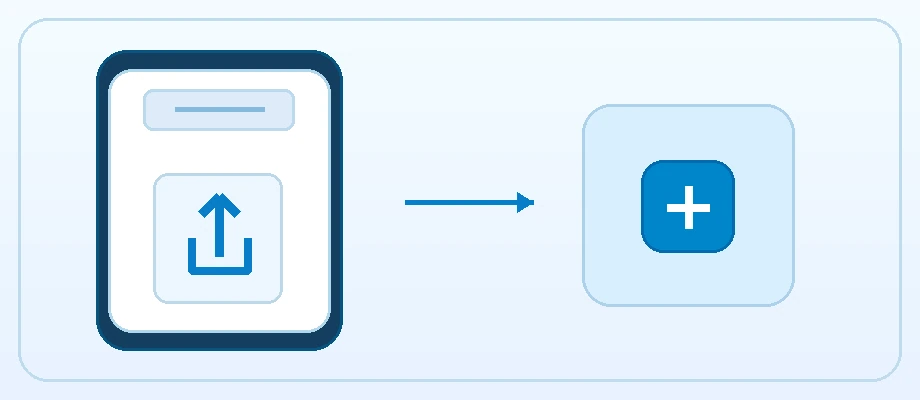
Open Winbox in Safari and check the address before saving anything. Tap the Share button and look for Add to Home Screen. Review the displayed name and tap Add when Safari offers that action.
Read the full explanation
A shortcut can take you back to the site while the account itself may still ask you to sign in.
If you opened a link in a chat app, use that app’s option to open it in Safari first. An embedded viewer can show a different menu. If the home-screen action is still unavailable, save the verified page as a Safari bookmark. That gives you a reliable return path.
Replace an old iPhone shortcut
If the icon opens an old address, remove the shortcut through its home-screen menu and open Winbox directly in Safari. Create a new shortcut from the confirmed page. If the regular site works but the account panel is blank, record the iOS version, Safari behaviour and what the form shows before contacting support.
How to use the record
If the menu option is missing, check whether you opened the page in an in-app viewer rather than Safari. A bookmark is enough to preserve the route. If an unknown message suggests installing a profile or package to update Winbox, verify it through the known contact route before granting any access.