
Start with the full provider list
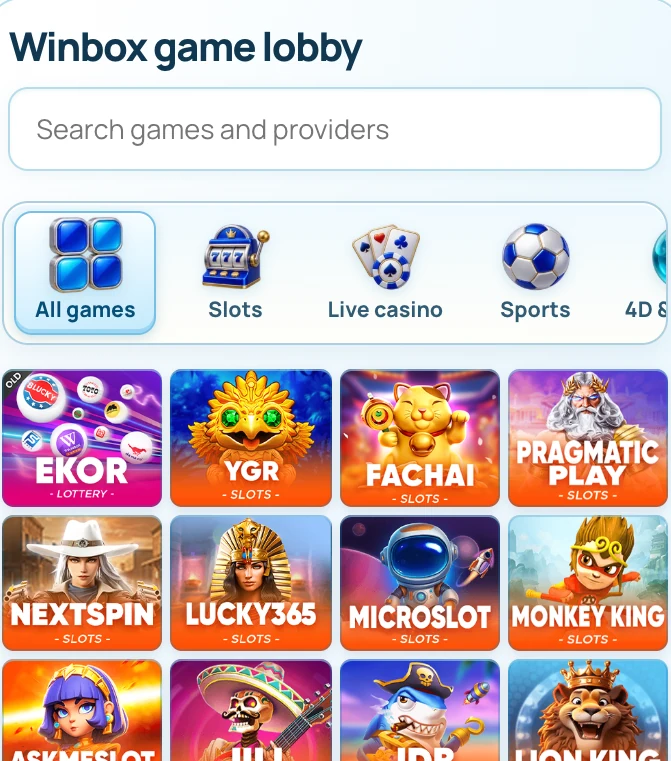
Open the games page or the homepage lobby beneath the four promotional banners. Both read the same catalogue. The items identify providers or game families, not a list of every individual game running inside an account.
Read the full explanation
Start with All Games to see the full list before applying filters. On a phone, the category bar can extend beyond the visible area; swipe it horizontally to reach the remaining choices.
You do not need to switch to desktop mode to use those filters.
Use category and search together
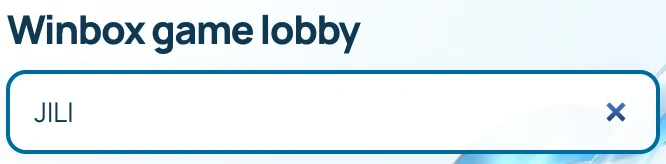
Choose a category such as slots, live casino, sports or number games, then search for a provider name within that selection. A short or partial name can help when you are unsure of the full brand spelling.
Read the full explanation
If there is no match, clear the search before changing categories so you know which filter caused the result. Return to All Games to search across the catalogue.
A zero-result view does not by itself show that the provider has been removed or that your account cannot use it.
Understand what happens after a tile tap
A tile opens the Winbox login route rather than a vendor's promotional website. Sign in with your own account, then choose the provider and individual game in the authenticated lobby.
 Open Winbox login
Read the full explanation
A provider may offer more than one format, and the live lobby determines what is currently presented for that account. Do not assume a catalogue label changes your account permissions or a game's rules.
Read the provider's game information before confirming a stake, especially when moving between similar-looking versions.
Report a missing image or unexpected result
For a catalogue display issue, send support the provider name, selected category and search text, plus the page address and device.
 Help and tutorials
Read the full explanation
A screenshot of the filtered view is more useful than a description saying only that games are missing.
If the authenticated lobby differs from the public catalogue, explain which screen you mean so support can investigate the correct service. Keep account credentials and balances out of a public screenshot.
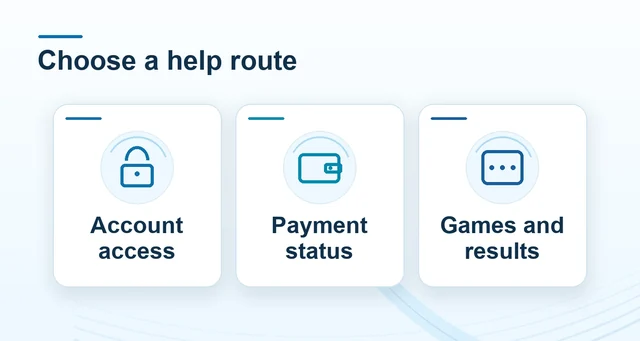
The help hub links to access guidance if the login itself is the failing step.
A provider tile and a game title live in different places
Open Slots or Live Casino in the Winbox catalogue. A PG Soft or Evolution card identifies a studio entry. Open its provider page for details about that studio.

Read the full explanation
Search the signed-in catalogue for an individual title such as Bikini Paradise or Crazy Time when you need the active edition and session rules.
A useful screenshot starts at the category bar and includes the selected filter and full tile. When the wrong tile opens, take a second screenshot of the title or provider panel at the destination. The two images establish whether the category, provider destination or individual game search needs attention.
Questions, answered
Are the homepage and games-page catalogues separate lists?
No. Both use the shared catalogue, including artwork, category assignment and ordering. If you see a difference, first check that the same category and search are selected.