
Open the real-name task from your account profile
Begin at Winbox Login and use your own account. The shared Winbox tutorial opens Me, then the three-dot profile menu, then Real-name authentication. This is the profile-and-bank task, not the withdrawal screen that asks you to match an exact credited amount. Read the heading before entering anything. If the profile menu has no matching item, keep the account interface’s actual wording and ask Winbox support which task applies; do not enter bank details into a similarly named page reached through a forwarded link.
Match the real name to the bank-account holder
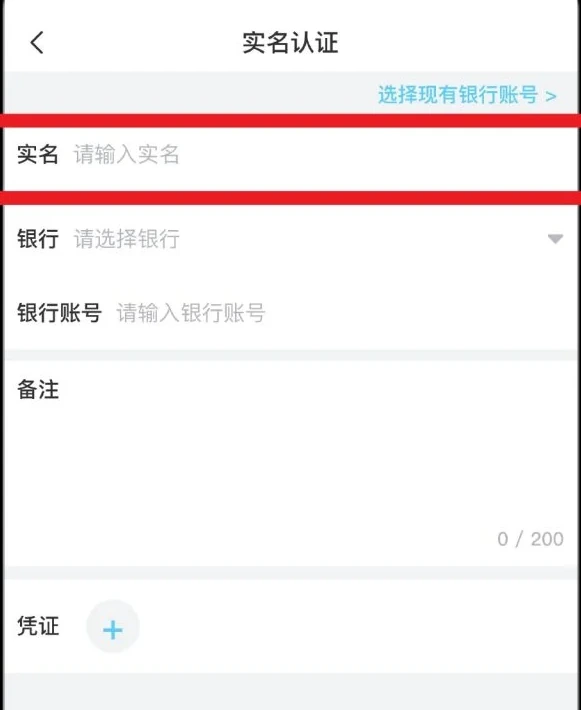
The illustrated form contains a real-name field, a bank selector, a bank-account number, remarks and a proof attachment area. Check the legal name against the holder name on your own bank record; a display nickname, UID and card number are different identifiers. Copy the bank-account number carefully, retaining any leading zeroes. Selecting a bank does not verify the remaining fields. Review any saved-account option before reusing it, especially if details have changed. The form illustration below is blank: its labels explain the task and supply no name, account number or verification code to copy.
 Enlarge image
| Field | Compare with |
|---|---|
| Real name | Your bank-account holder record |
| Bank | The institution for that account |
| Account number | Account identifier, not a card number |
| Proof, if requested | The stated item and submission channel |
Submission received and approved are separate states
After reviewing the form, the tutorial uses OK to submit. Its next screen says the request has been submitted and is waiting for review; the later screen separately shows success. A clock icon or receipt is therefore not the same evidence as an approved status. Keep the submission time and reference, then revisit the status for that request. If a field is rejected or the name differs from the bank record, ask about correction of the existing request rather than creating extra UIDs or submitting conflicting details. A verified profile also does not by itself prove that a particular promotion has been awarded or a withdrawal has settled.
- Submitted: the form has been received
- In review: check for a request to correct or add information
- Approved: confirm the new status in your account
| Observed state | What to retain |
|---|---|
| Editing | Reviewed fields before submission |
| Submitted / under review | Submission time and request reference |
| Approved / correction requested | Status wording and follow-up reference |
Resolve the specific verification question
For a missing menu, report the account page and label you can see. For a rejected name or bank field, identify that field and the exact message, keeping unrelated financial details out of a general chat. Ask for the approved submission channel before sending proof documents. Enter private account or bank credentials only in their appropriate trusted interface; a support message does not need your password or OTP. Bank binding limits, company-account acceptance, transfer permissions and any verification reward require current Winbox terms. A historical RM100 promotion or another UID’s successful example does not establish your own entitlement.
Questions, answered
What if I can’t select Currency or Bank during identity verification?
Complete the required fields above the disabled menu and look for an on-screen instruction. If it remains disabled, note the field name and message, then contact Winbox support. You can usually show the error in a screenshot with identity and bank numbers covered.